Zipato Mini Keypad RFID/Z-Wave - Adding
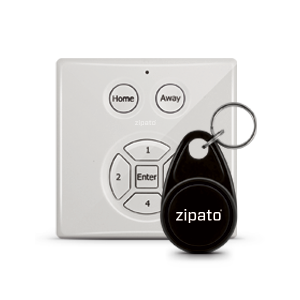
Device can use up to 20 codes, RFID reader inside, 1 RFID Key tag included, could be used within a security widget and rule creator, Z-Wave. Mini Keypad RFiD/Z-Wave’s indicator light will react differently on each action.
Features of Mini Keypad RFID/Z-Wave:
- Can arm/disarm a security system
- Can read Mini Keypad RFID/ZWave-tags
- Has the possibility for the user to manually insert codes
- Indicator light will react differently on each action
How to add Zipato Mini Keypad RFID?
- Log in into Zipato Control Center
- Go to the “Device manager” button on the left sidebar
- Press “Add new device” button
- Please find and choose Z-Wave network protocol
- Exclude (reset) of the device before inclusion (always good prior inclusion process)
- Include the device
- Automatic synchronization of data between your Zipato Controller and Zipato Cloud Server will be done
- Congratulations your Zipato Mini Keypad RFID is added/included on the Zipato Controller
- press and hold the tamper for 1 seconds and release to start the exclusion process
- press and hold the tamper for 1 seconds and release to start the inclusion process
How to add iRFID tag on Zipato Mini Keypad RFID?
- Go to the “Device manager” button on the left sidebar in Zipato Control Center
- Find Zipato Mini Keypad RFID in Z-Wave network
- Go to User Entry (cluster attribute) and click on settings
- Enter the Event name, User and click on Learn button
- On Zipato Mini Keypad RFID press Home button and place iRFID tag in front of or on Zipato Mini Keypad
- In the Zipato Control Center you will get message "Learned successfully"
- Save and Synchronize at the end
How to add PIN on Zipato Mini Keypad RFID?
- Go to the “Device manager” button on the left sidebar in Zipato Control Center
- Find Zipato Mini Keypad RFID in Z-Wave network
- Go to User Entry (cluster attribute) and click on settings
- Enter the Event name, User and click on Learn button
- On Zipato Mini Keypad RFID press Home button and enter 4 digit PIN on Zipato Mini Keypad
- Press Enter on Zipato Mini Keypad RFID
- In the Zipato Control Center you will get message "Learned successfully"
- Save and Synchronize at the end
Tutorial: