Automation - Create a scene
Component:
- Automation
Process:
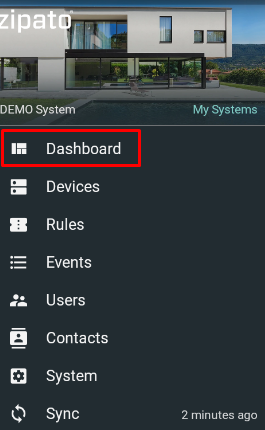
- Select Dashboard from the main menu
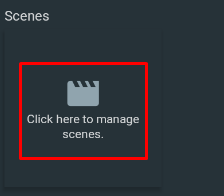
- Click on the scene widget to add a new scene
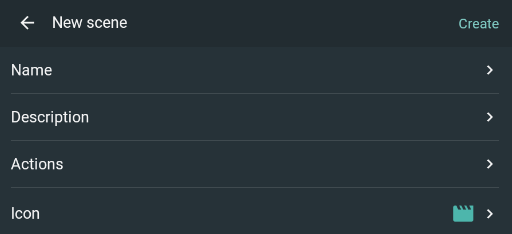
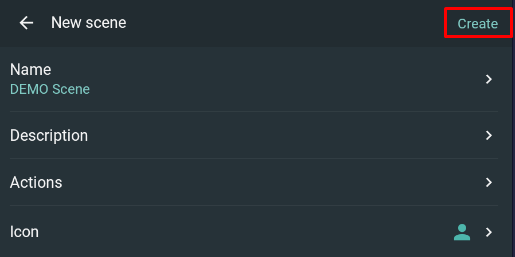
- Click the "+" icon in the lower right corner to add new scene and define its name (mandatory), description (optional) and icon (optional)
- Select "Actions" and click the "+" icon in the lower right corner to add a new device in the scene
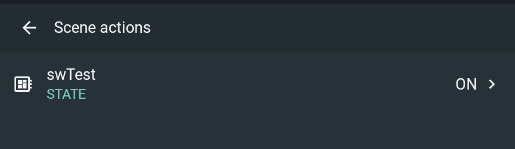
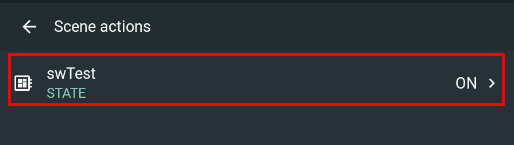
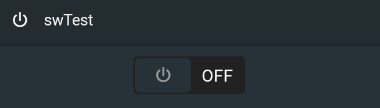
4a. Click on the device widget to define its state in the scene
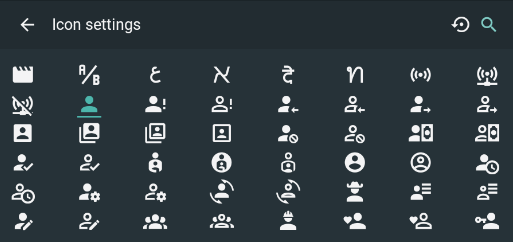
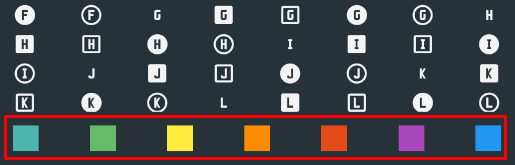
- Click on the "Icon" and select an icon (and its color) from the list
- Click the "Create" button to save the scene
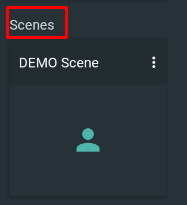
- To add another Scene click on the "Scenes" title and then click "+" icon at the lower right corner to add new scene
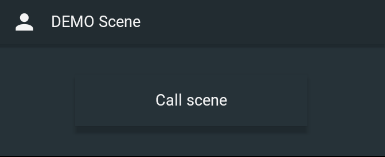
- Click on the Scene widget to open run scene widget
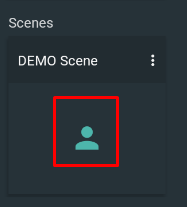
NOTE: To edit scene data click on the 3 dots in the widget