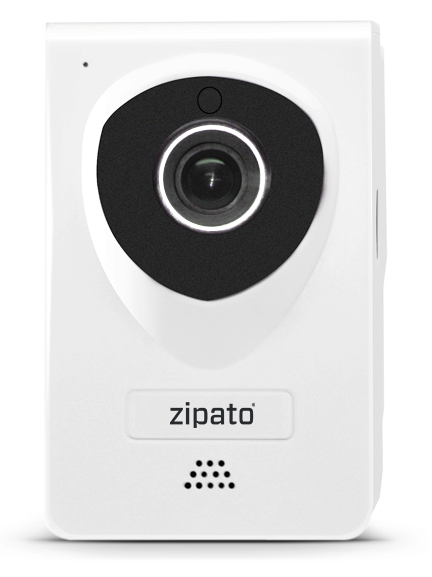
How to add supported IP Camera in Zipato Control Center?
- Log in Zipato Control Center
- Click on the "Device manager" tab on the left sidebar
- Select "Add new device" and "Add new device wizard" window will pop-up
- In the "Add new device wizard" window choose "IP Camera" box and the Discovery process will start automatically
- When the Discovery process is finished, you can close the "Add new device wizard" window
- Please click on the "Synchornize" button on the left sidebar
- Now you can go to "Camera" section in the left sidebar and the camera will be visible there