Automation - create Geofencing rule
Component:
- Automation
NOTE: check how to create a rule - Automation - Create a rule
Process:
- Select "Rules" from the Main menu
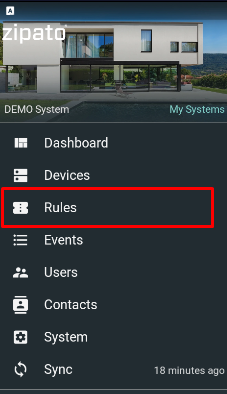
- Click the "+" icon in the lower right corner and create new Rule
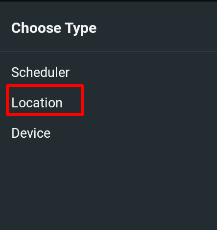
- Under Rule triggers select Location option
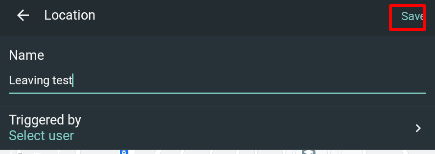
- Define name of the geofencing rule, select user who will triggers the rule, set location radius and specify type of geofencing rule - Arriving or Leaving.
NOTES:
Selected account must use Zipato mobile app with location permissions set to "All the time" in order to triggers the rule correctly.
Rule is triggers when user enter/ Leave Location circle (defined by location radius)
By default, geofencing feature has 200m tolerance so it could cause max 400m distance from the center
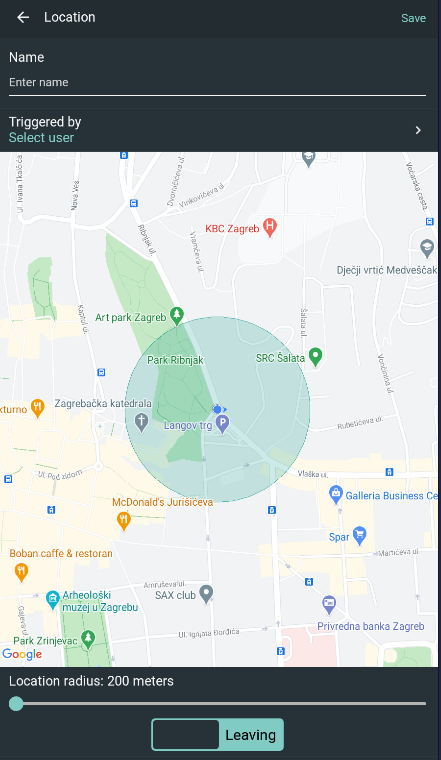
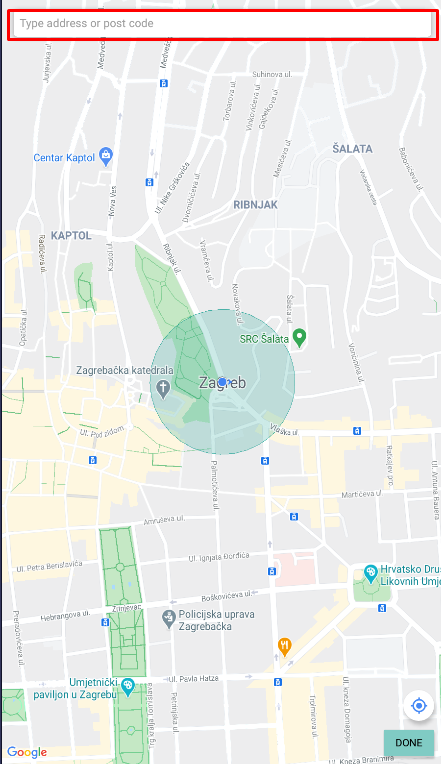
- Click on map and define location either by drag the map and tap or enter an address
- Click Save button
- Define Action which will be triggerd by Geofencing
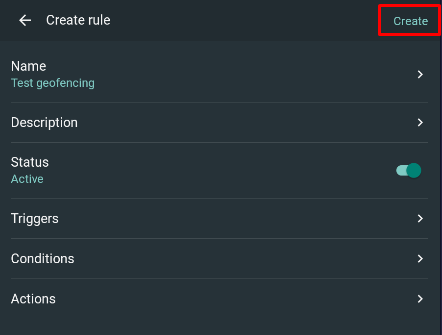
- Confirm it by Create button
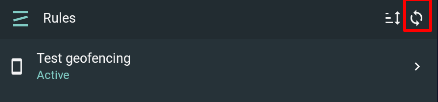
- Click sync button to synchronize it with the Zipato server